TaigiKeyboard
Write in Taiwanese
 Download on
iPhone
Download on
iPad
Download 3.8.0
macOS
Download on
iPhone
Download on
iPad
Download 3.8.0
macOS
 Download on
Google Play
Download on
Google Play
 Download 3.8.0
Windows
Download 3.8.0
Windows
 Download 3.8.0
Ubuntu / Debian
Download 3.8.0
Ubuntu / Debian
 Download 3.8.0
Fedora
Download 3.8.0
Fedora
 Download 3.8.0
Arch Linux
Download 3.8.0
Arch Linux
Requires macOS 14 (Sonoma) or later
Requires Windows 10 or later
Linux(x86_64,Fcitx5/IBus):Ubuntu 24.04+、Debian 13+、Fedora 44+、Arch
About TaigiKeyboard
TaigiKeyboard is a free, open-source Taiwanese input method, built in Taiwan around the needs of Taiwanese typing. It supports iOS, Android, macOS, Windows, and Linux, with Pe̍h-ōe-jī (POJ), Tâi-lô (TL), and Taiwanese Phonetic Symbols (TPS).
TaigiKeyboard will always be free, with no ads or paid features. Individuals, teachers, schools, and Taiwanese-language education groups are welcome to use it freely, without an extra cost for using or teaching the language.
I develop and maintain this project on my own outside work, covering most costs myself. I hope to keep it going so everyone who wants to type in their mother tongue has a useful tool.
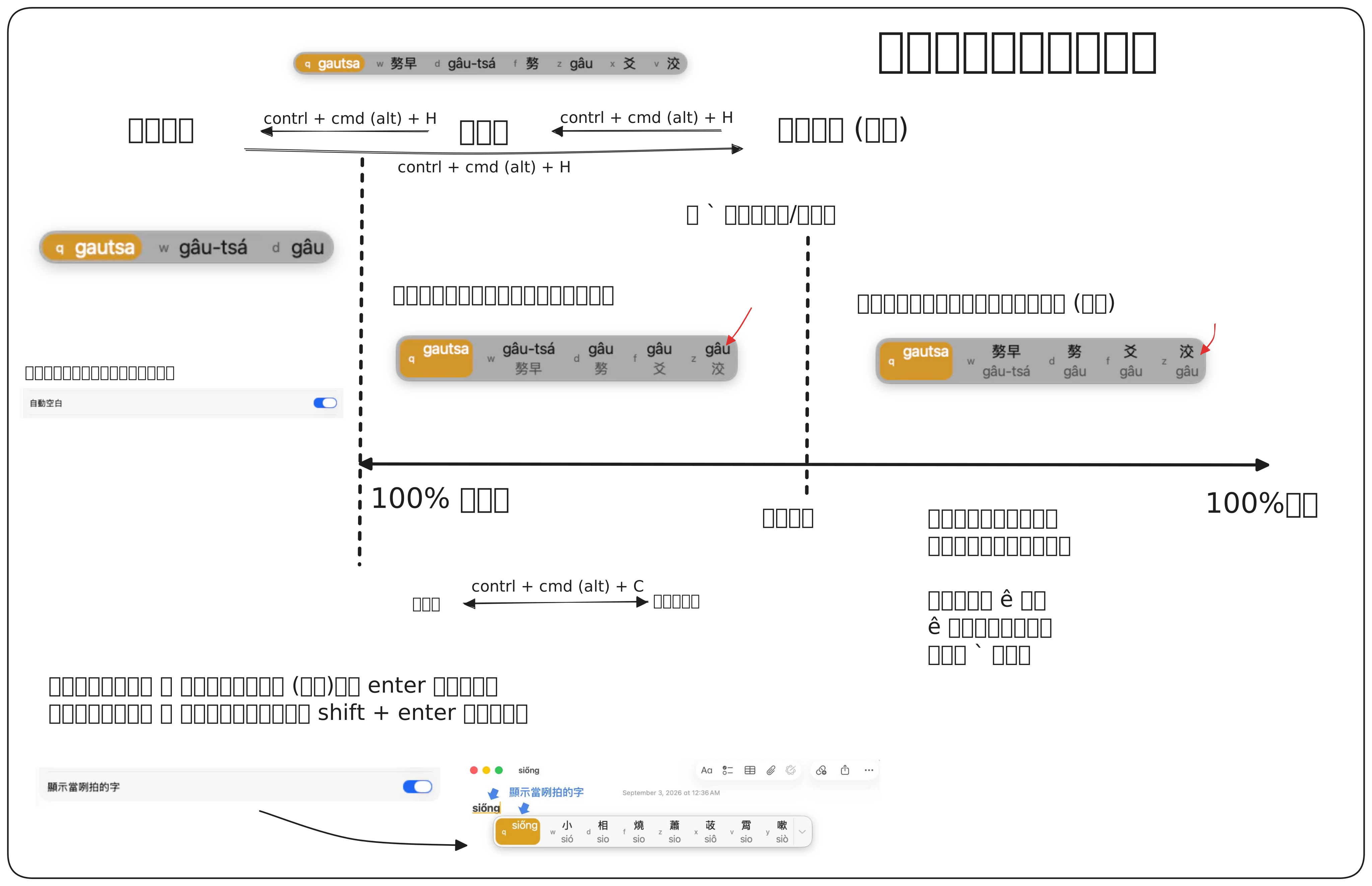
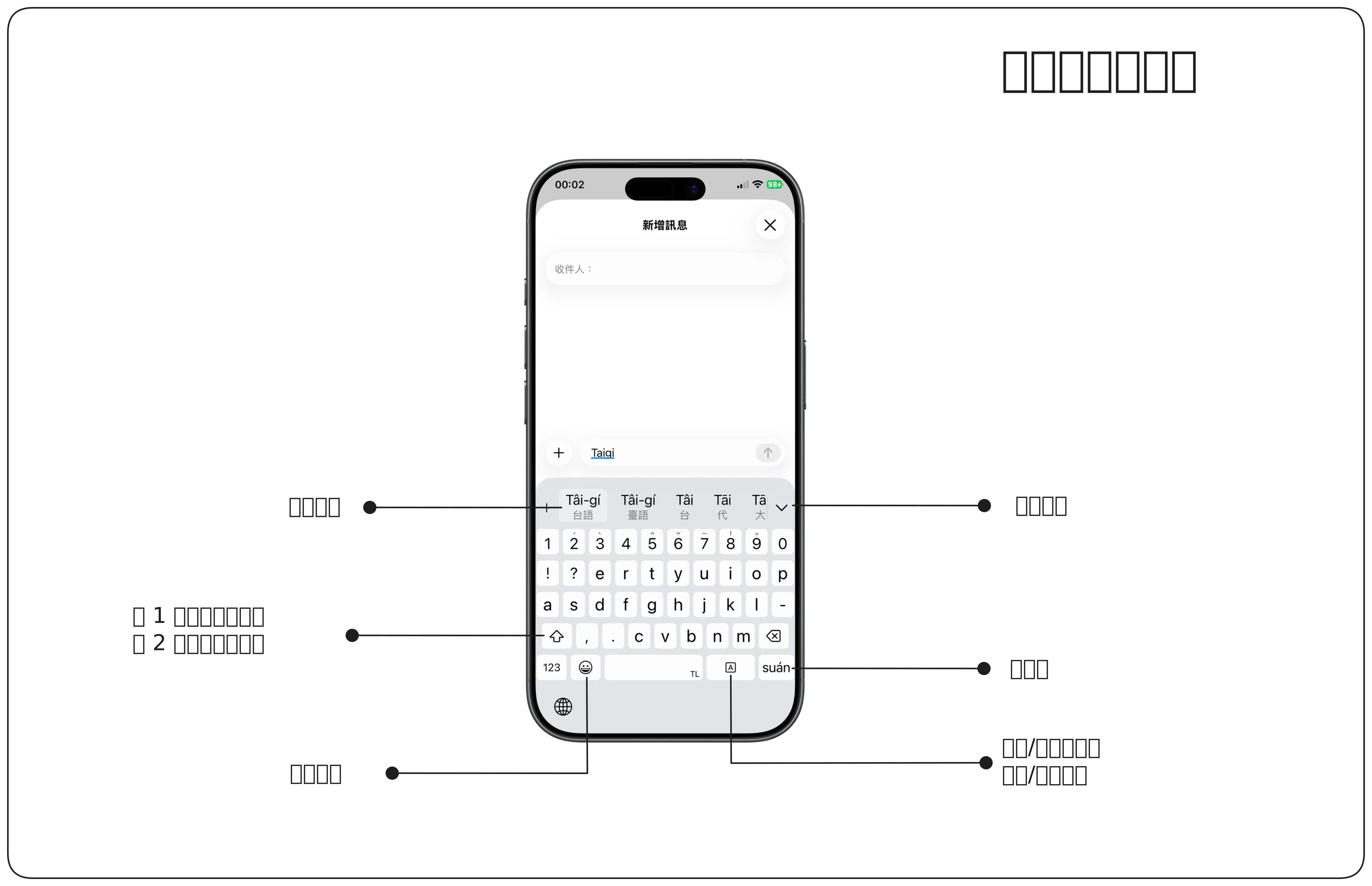
Typing guide
The typing reference charts are in Taiwanese.
Desktop
Mobile
Installation
iPhone / iPad
-
Find TaigiKeyboard in the App Store on your iPhone or iPad and install it.
-
After installation, open Settings > General > Keyboard.
-
Open Keyboards > Add New Keyboard, choose TaigiKeyboard, and enable Allow Full Access.
-
Reopen the app you want to type in so it can load the keyboard.
-
Tap the globe icon and select TaigiKeyboard.
Android
-
Find TaigiKeyboard in Google Play and install it.
-
Open your device settings and find the keyboard or on-screen keyboard settings. The location varies by device.
-
Enable TaigiKeyboard in the keyboard list.
-
Reopen the app you want to type in.
-
Use the keyboard switcher to select TaigiKeyboard.
macOS
-
Download the macOS installer above.
-
Follow the installation instructions.
-
Log out and back in so macOS can load the input method.
-
Open the input source settings and add TaigiKeyboard (台語齒盤).
-
Press Control + Command + S to open TaigiKeyboard settings, then start typing.
Windows
-
Download the Windows installer above.
-
Run the installer. If Windows shows a warning, choose More info > Run anyway.
-
Open Settings > Time & language > Language & region > Language options > Keyboards > Add a keyboard.
-
Log out and back in so Windows can load the input method.
-
Find TaigiKeyboard (台語齒盤) in the keyboard list and add it.
-
Press Control + Alt + S to open TaigiKeyboard settings, then start typing.
Linux
-
Download the Linux package above: .deb for Ubuntu/Debian, .rpm for Fedora, or .pkg.tar.zst for Arch (x86_64).
-
In a terminal, run sudo apt install ./taigikeyboard_VERSION_amd64.deb on Ubuntu/Debian, sudo dnf install ./taigikeyboard-VERSION-1.x86_64.rpm on Fedora, or sudo pacman -U ./taigikeyboard-VERSION-1-x86_64.pkg.tar.zst on Arch. Replace VERSION with the downloaded version.
-
Run fcitx5 -r (or ibus restart for IBus), or log out and back in.
-
Open fcitx5-configtool for Fcitx5, or the system input source settings for IBus, and add TaigiKeyboard (台語齒盤).
-
Press Control + Alt + S to open TaigiKeyboard settings, then start typing.
Code signing policy (English): Free code signing provided by SignPath.io, certificate by SignPath Foundation.
Application pending; current Windows releases are unsigned.
Support
Maintaining TaigiKeyboard involves Apple and Google store fees, development tools, website hosting, and other service costs. All contributions go toward development and maintenance.
If TaigiKeyboard helps you, please consider supporting the project. Your support helps me keep up with operating system updates, fix problems, and improve the typing experience.
Feedback
Questions, problems, or ideas for improvement? Email me at [email protected].
Join Discord to report a problem.